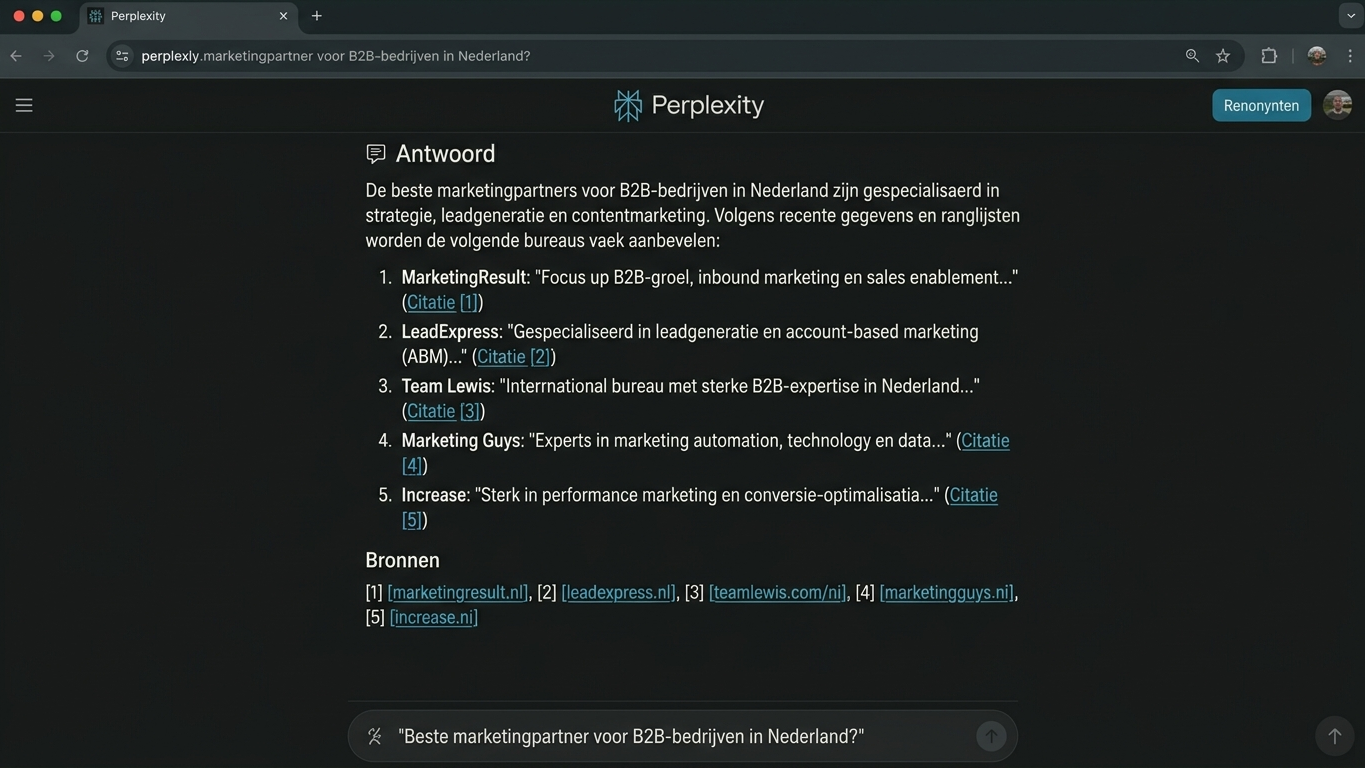
Your content may be perfect. But if your robots.txt blocks AI crawlers, your website simply doesn't exist for ChatGPT, Perplexity or Google AI Overviews. Technical accessibility of your site is the very first requirement for AI visibility.
In this tutorial you'll walk through step by step how to check, optimize and validate your robots.txt for the major AI crawlers. No theory without action: each step delivers you a concrete result.
Why your robots.txt is the gatekeeper for AI crawlers
The robots.txt is a simple text file in the root of your domain. It tells crawlers which pages they may visit and which ones they may not. For traditional search engines this has been the standard for decades. But the rise of generative AI adds a new layer.
AI engines such as ChatGPT (via GPTBot), Anthropic Claude (via ClaudeBot) and Google Gemini use their own crawlers. These bots respect your robots.txt. If you accidentally block them, your content cannot be indexed and therefore cannot be cited in AI responses.
The problem? Many standard robots.txt files were set up years ago. They don't account for this new generation of crawlers. That makes a thorough robots.txt check part of your technical GEO setup.
Step 1: check your current robots.txt
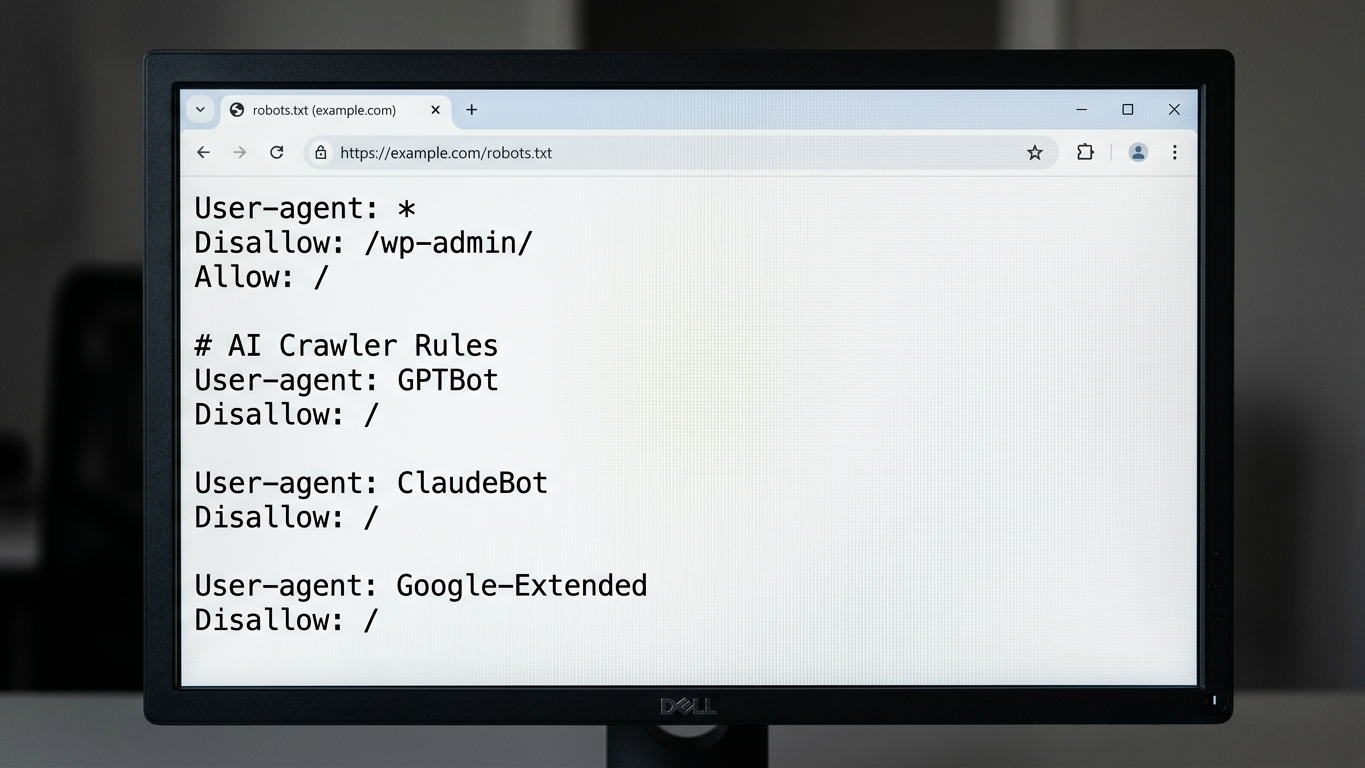
Open your browser and navigate to yourdomain.com/robots.txt. You now see the current instructions for all crawlers. Pay specific attention to these elements:
- User-agent: * followed by Disallow: / blocks all crawlers, including AI bots.
- User-agent: GPTBot with a Disallow rule blocks OpenAI specifically.
- User-agent: ClaudeBot with a Disallow rule blocks Anthropic.
- User-agent: Google-Extended with a Disallow rule blocks Google AI applications.
Note which rules are active. This is your baseline. See a broad Disallow: / without exceptions? Then there's a good chance AI crawlers can't read your entire site.
Common blocks
| Rule in robots.txt | Effect on AI crawlers |
|---|---|
User-agent: * / Disallow: / |
Blocks all bots, including AI |
User-agent: GPTBot / Disallow: / |
Blocks ChatGPT only |
User-agent: ClaudeBot / Disallow: / |
Blocks Claude only |
User-agent: Google-Extended / Disallow: / |
Blocks Google AI Overviews |
| No mention of AI bots | Default allowed (via wildcard) |
Step 2: decide which AI crawlers you want to allow
Not every organization wants to be completely open to all AI crawlers. Make a conscious choice. Ask yourself three questions:
- Which AI platforms do you want to be visible on?
- Are there pages with sensitive or non-public content?
- Do you want to exclude specific directories (such as
/admin/or/staging/)?
For most business websites: allow GPTBot, ClaudeBot, PerplexityBot and Google-Extended on all public pages. Block only technical or internal sections.
Step 3: write your optimized robots.txt
Below you'll find a template that's directly implementable. Copy it, adapt it for your domain and upload it to your root directory.
# Traditional search engines
User-agent: Googlebot
Allow: /

User-agent: Bingbot
Allow: /

# AI crawlers explicitly allowed
User-agent: GPTBot
Allow: /
Disallow: /admin/
Disallow: /staging/

User-agent: ClaudeBot
Allow: /
Disallow: /admin/

User-agent: PerplexityBot
Allow: /
Disallow: /admin/

User-agent: Google-Extended
Allow: /
Disallow: /admin/

# Other bots
User-agent: *
Allow: /
Disallow: /admin/
Disallow: /tmp/

# Sitemap
Sitemap: https://yourdomain.com/sitemap.xml
Note: the order of rules is important. Specific user-agent rules take precedence over the wildcard (*). Always place your AI crawler rules above the general rule.
Step 4: validate your changes
After uploading your customized robots.txt, validation is essential. Use two methods for this:
- Google Search Console: Use the robots.txt Tester to check if Googlebot and Google-Extended are treated correctly.
- GrowthScope Quickscan: Enter your domain and receive a complete technical GEO analysis within minutes. The scan automatically checks whether AI crawlers have access and whether your robots.txt is configured correctly.
The Quickscan gives you immediate insight into your crawlability status per AI platform. No account, no API keys, no setup.
Robots.txt and llms.txt: two layers of AI accessibility
Your robots.txt controls whether AI crawlers can visit your site. But there's a second layer: the llms.txt file. This file tells AI engines what your organization does, which pages are most important and how your content is structured.
robots.txt is your access gate. It opens or closes the door. llms.txt is your business card. It tells the AI who you are and what you have to offer.
Both files work together. Without a correct robots.txt your llms.txt won't reach the crawler. Without llms.txt the crawler misses context about your brand. Implement both for maximum AI visibility.
Common mistakes with robots.txt for AI
Even experienced developers make these mistakes:
- Forget to update wildcard block. An old
Disallow: /underUser-agent: *blocks all AI bots if there are no specific rules above it. - Set crawl-delay for AI bots. This unnecessarily slows down indexing and can cause the crawler to skip your site.
- Don't include sitemap. Without sitemap reference the crawler misses your site structure.
- No periodic checks. CMS updates or plugin changes can silently overwrite your robots.txt.
Make robots.txt checks part of your technical routine
AI visibility is not a one-time configuration. Platforms like ChatGPT and Perplexity regularly introduce new crawlers. Your robots.txt must evolve with them. Schedule a quarterly check or use GrowthScope's trend tracking to automatically monitor changes in your technical GEO status.
Start your robots.txt check today. Enter your domain, get your technical GEO analysis and know within minutes whether AI crawlers can reach your site.
Start your Quickscan →